Location Library
The Location Library is the heart of YAQRSA's reusable design. Instead of creating "stops" for every single event, you create "Locations" once and use them in multiple hunts.
Managing Locations
Quick Add Location (Rapid Entry)
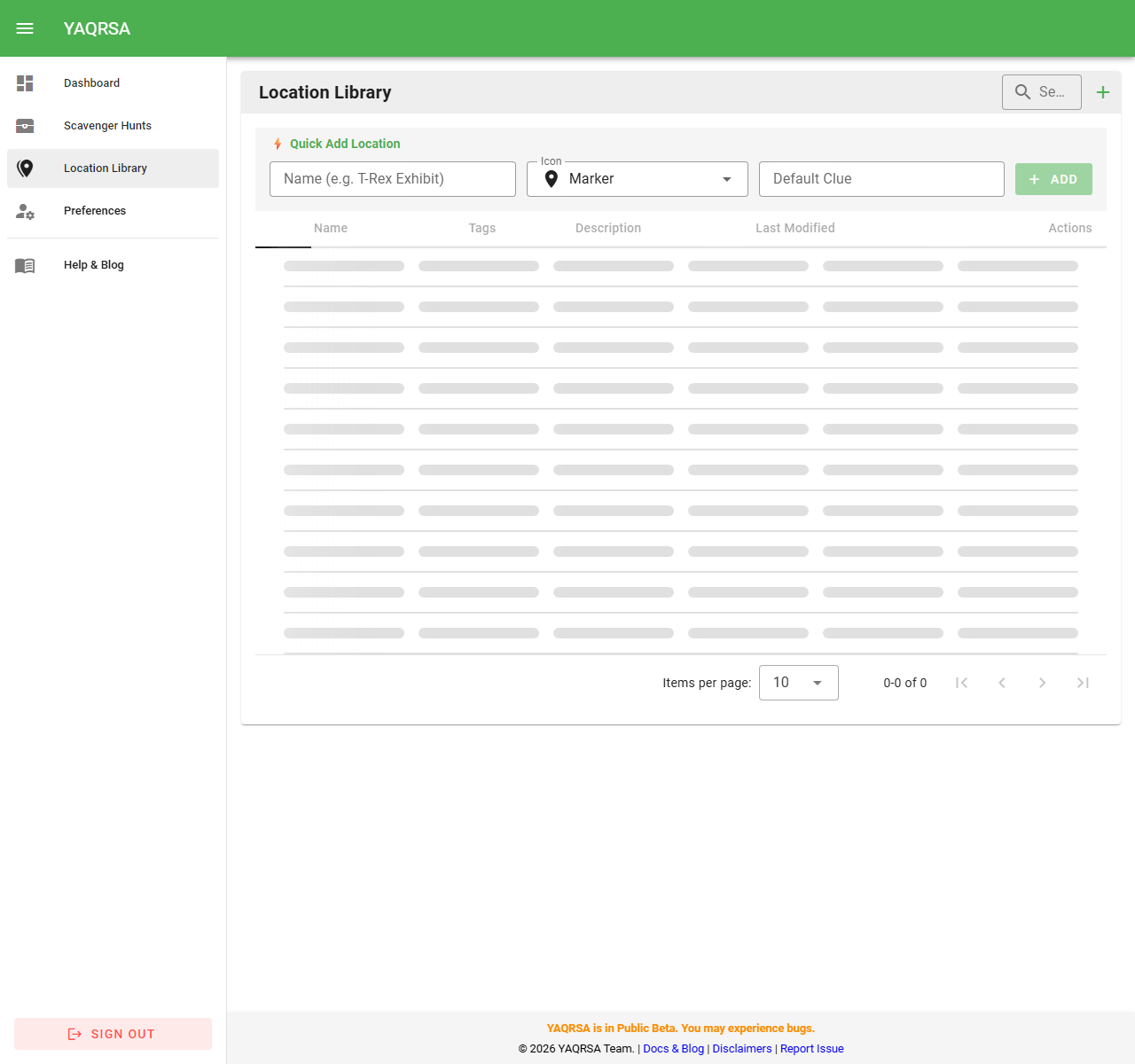
For fast data entry, you can add locations directly from the Library list without opening a new page:
- Navigate to the Location Library.
- Locate the ⚡ Quick Add Location row at the top of the table.
- Enter the Name, select an Icon, and provide a Default Clue.
- Click Add. The location is saved instantly and appears in your list.
Adding a Detailed Location
- Navigate to the Location Library.
- Click the Detailed Location button.
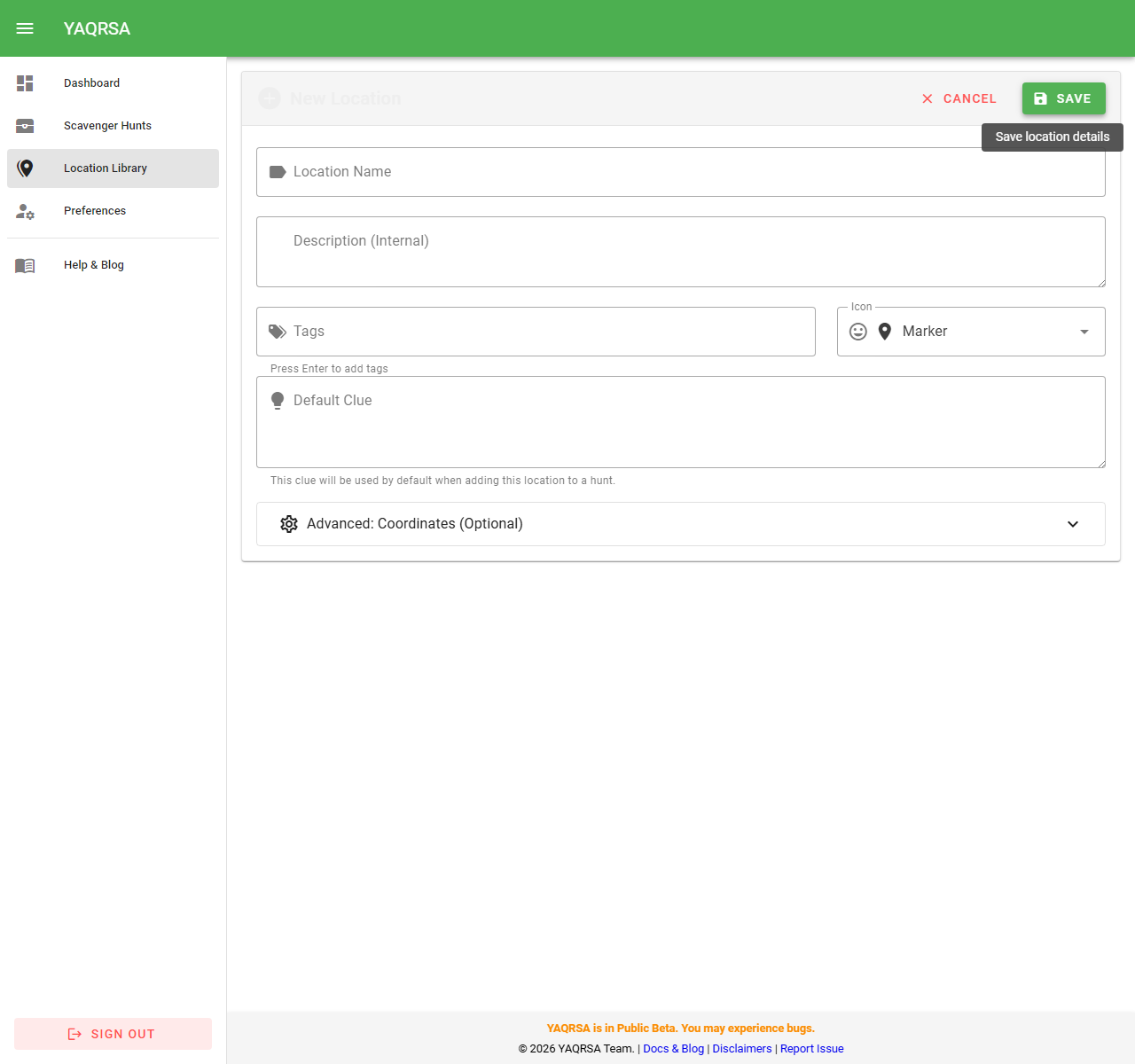
- Name: Something recognizable like "Main Entrance" or "Statue of Liberty".
- Description: Internal notes about where it is exactly (e.g., "Behind the third pillar").
- Default Clue: A generic hint. When you add this location to a Hunt, you can use this default clue or write a specific one for that game.
- Advanced: Coordinates: (Optional) Latitude and longitude, hidden by default. Use this only if you plan to enforce precise GPS location verification.
- Tags: (Optional) helpful for filtering if you have hundreds of spots.
- Participant Details: (Optional) Interesting facts or "Did You Know?" trivia. This text is shown to the player after they successfully find the location. It's a great way to add educational content or fun facts.
Deleting
WARNING
Deleting a location will remove it from the library. If it is currently being used in active Hunts, those stops might break or show errors. Use with caution.
Feature: Permanent QR Codes
Every location has a Permanent QR Code.
- How to access: Click the QR Icon on a location row.
- What it does: This code serves a permanent URL (e.g.,
.../scan/location/XYZ). - Use Case: You can print this sticker using durable material and place it permanently at the location.
- When a player scans it during a Hunt, the system checks if that location is part of their active game.
- If you change the game (e.g., end "Summer Hunt" and start "Winter Hunt"), you do not need to replace the physical QR sticker. The same code simply points to the new context.
Feature: Location Analytics
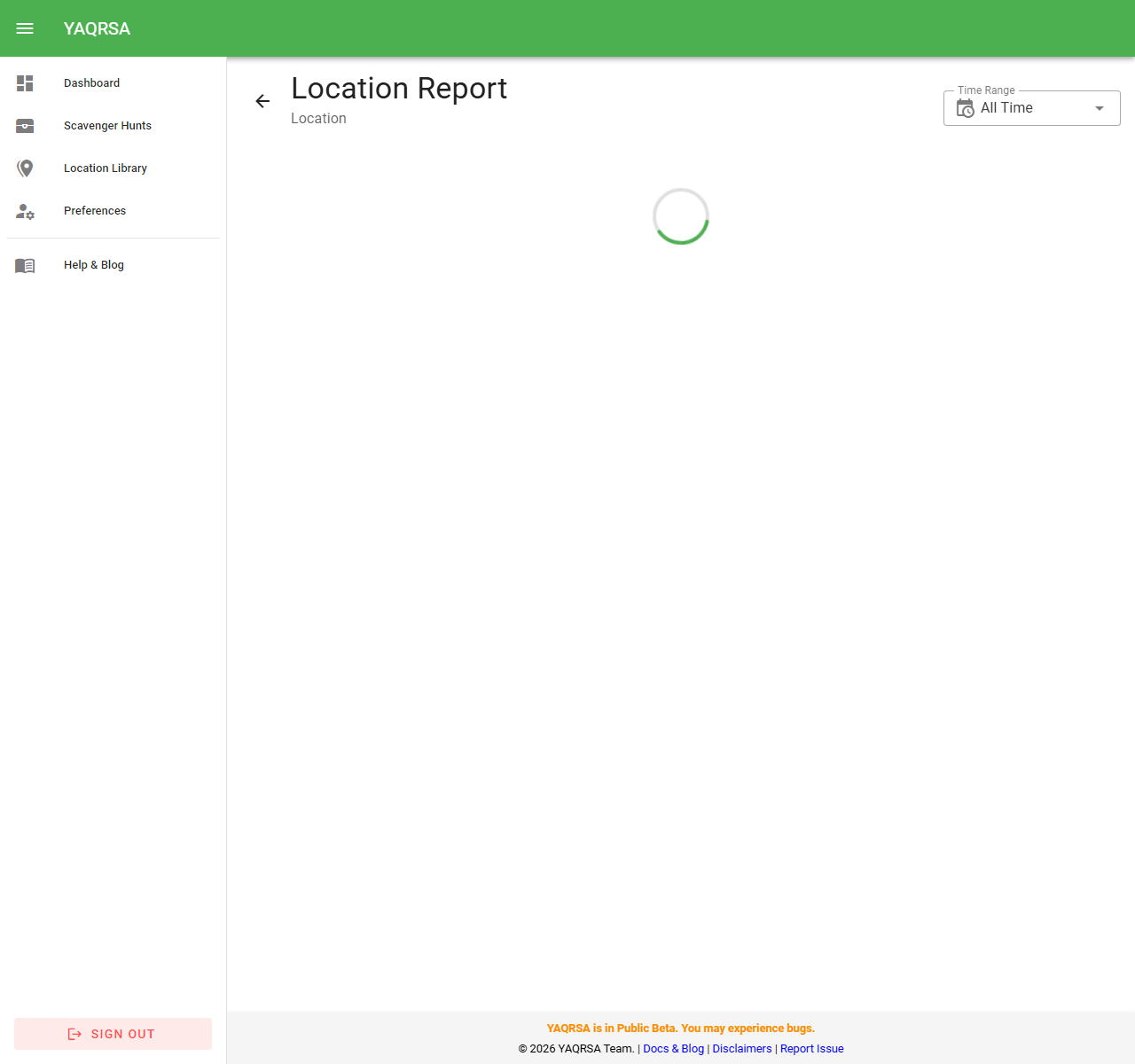
You can see how a physical location performs across all time and all hunts.
- Click the Chart Icon (View Report) on a location row.
- Dashboard:
- Total Visits: How many times this spot has been scanned in history.
- Hunt Breakdown: See which specific Hunts are driving traffic to this location.
- Time Filtering: Filter by Today, This Week, Last 30 Days, etc.