Comprehensive Hunt Options
YAQRSA offers a wide variety of settings to tailor your scavenger hunts to any audience or environment. This guide explains every option available in the Hunt Settings tab when creating or editing a hunt.
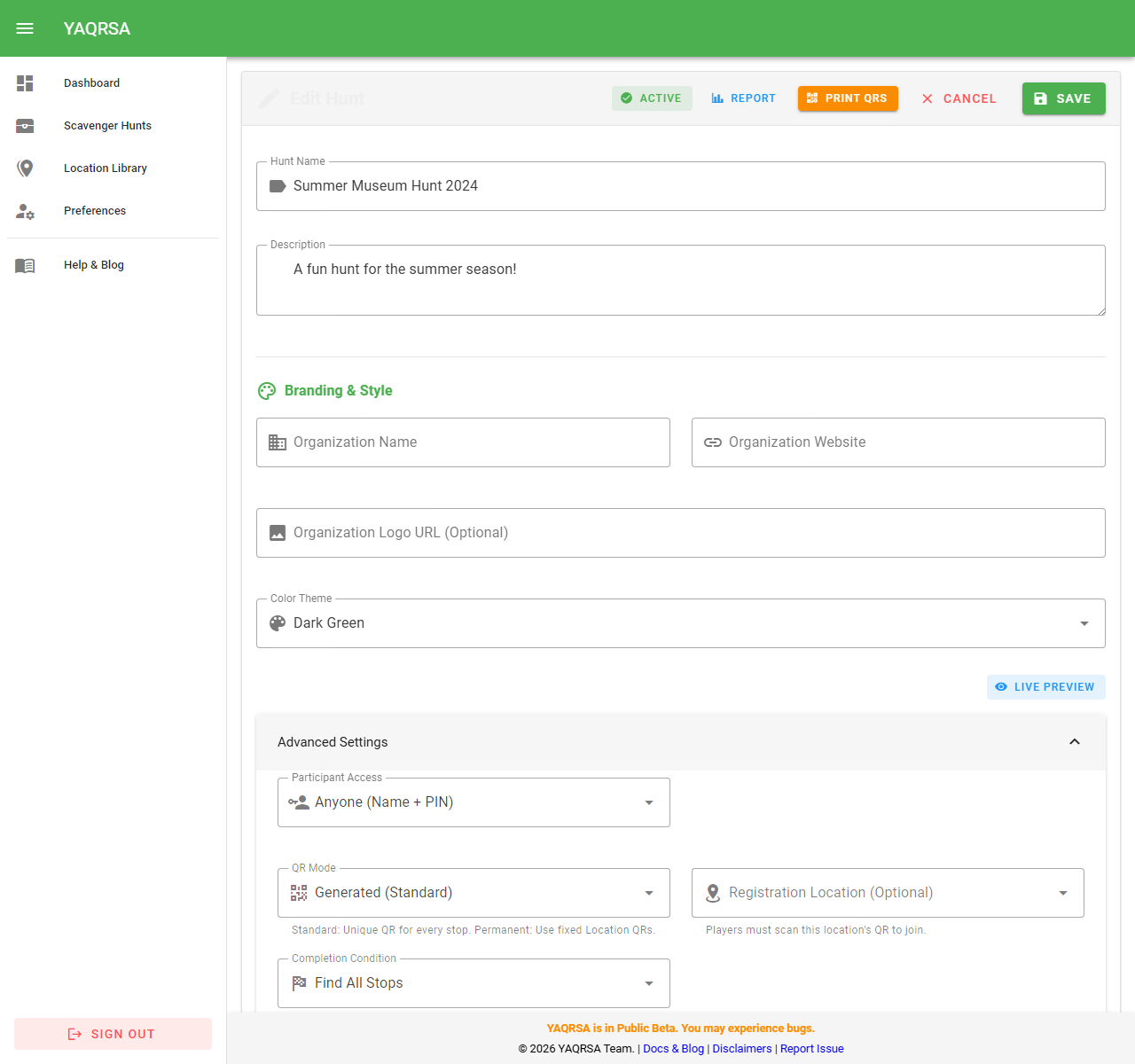
QR Mode
Determines how players interact with the physical QR codes:
- Standard Mode (Generated): Generates brand new, unique QR codes specific to this hunt. Scanning them only works for this exact event. Best for one-off games or disposable paper printouts.
- Location Mode (Permanent): The hunt relies on the permanent QR codes generated from your Location Library. Best for venues like museums or parks where you've installed rigid signs. When someone scans a library code, the system checks if they have an active game that requires it.
Completion Conditions
Define what it takes for a player to "win" or finish the hunt:
- Find All Stops: The classic mode. The player must scan every single location assigned to the hunt.
- Find Specific Count: You require the player to find only a subset of the stops (e.g., "Find any 5 out of the 10 hidden spots"). Useful if some locations might be temporarily inaccessible.
- Accumulate Points: Every stop is assigned a point value. The player wins when they reach the target score you set here.
Location Settings
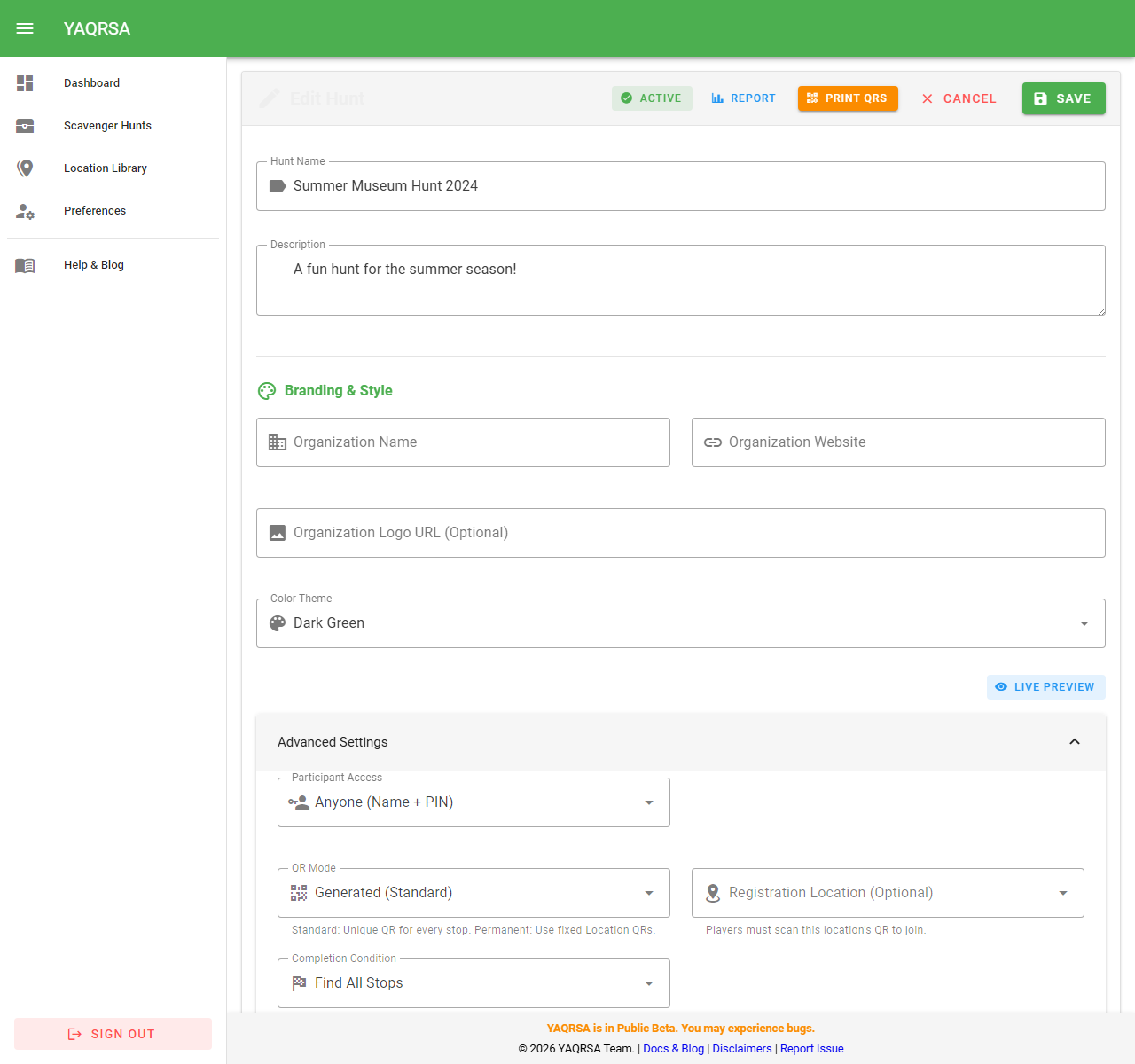
- Require GPS Verification: When enabled, the player's device must provide their geographic coordinates when scanning a code.
- GPS Tolerance (Meters): If GPS is required, the player must be within this many meters of the exact coordinates defined in your Location Library for that stop. Prevents players from taking photos of the QR code and scanning them later from home. Note: Requires your Location Library items to have accurate coordinates.
- Registration Location: Forces all players to scan a specific location first before they can begin the hunt (e.g., "Start at the Help Desk").
Victory Actions
What happens when the player successfully finishes the hunt:
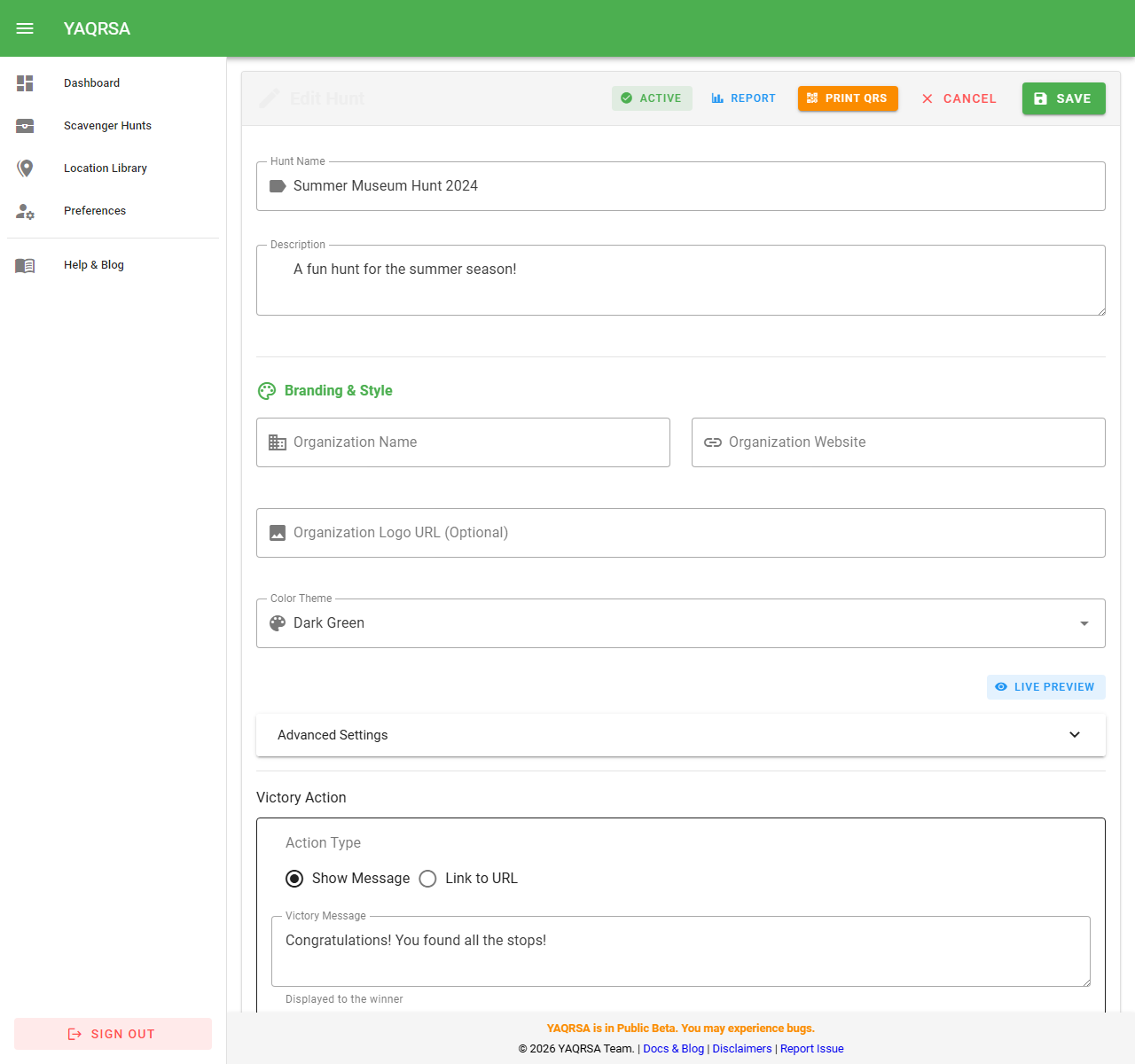
- Show Message: Displays a simple text message. (e.g., "Congratulations! Return to the front desk to claim your sticker.")
- Link to URL: Displays a button that redirects the player to an external website. You can customize the button text (e.g., "Claim digital coupon", "Download Certificate", or "Fill out survey").
Audience & Authentication
Control who can play your hunt:
- Anonymous (Default): The lowest barrier to entry. Players only need to provide a Nickname (Team Name) and create a simple 4-digit PIN to secure their session. No emails required.
- Email Verification: Players must provide an email address and verify it via a magic link or OTP before starting.
- Authenticated: Players must have a full registered YAQRSA account to participate.
- Allowed Domains: If using Email Verification, you can restrict access to specific domains (e.g., only
@yourcompany.com).
Display Settings
Customize the player's dashboard experience:
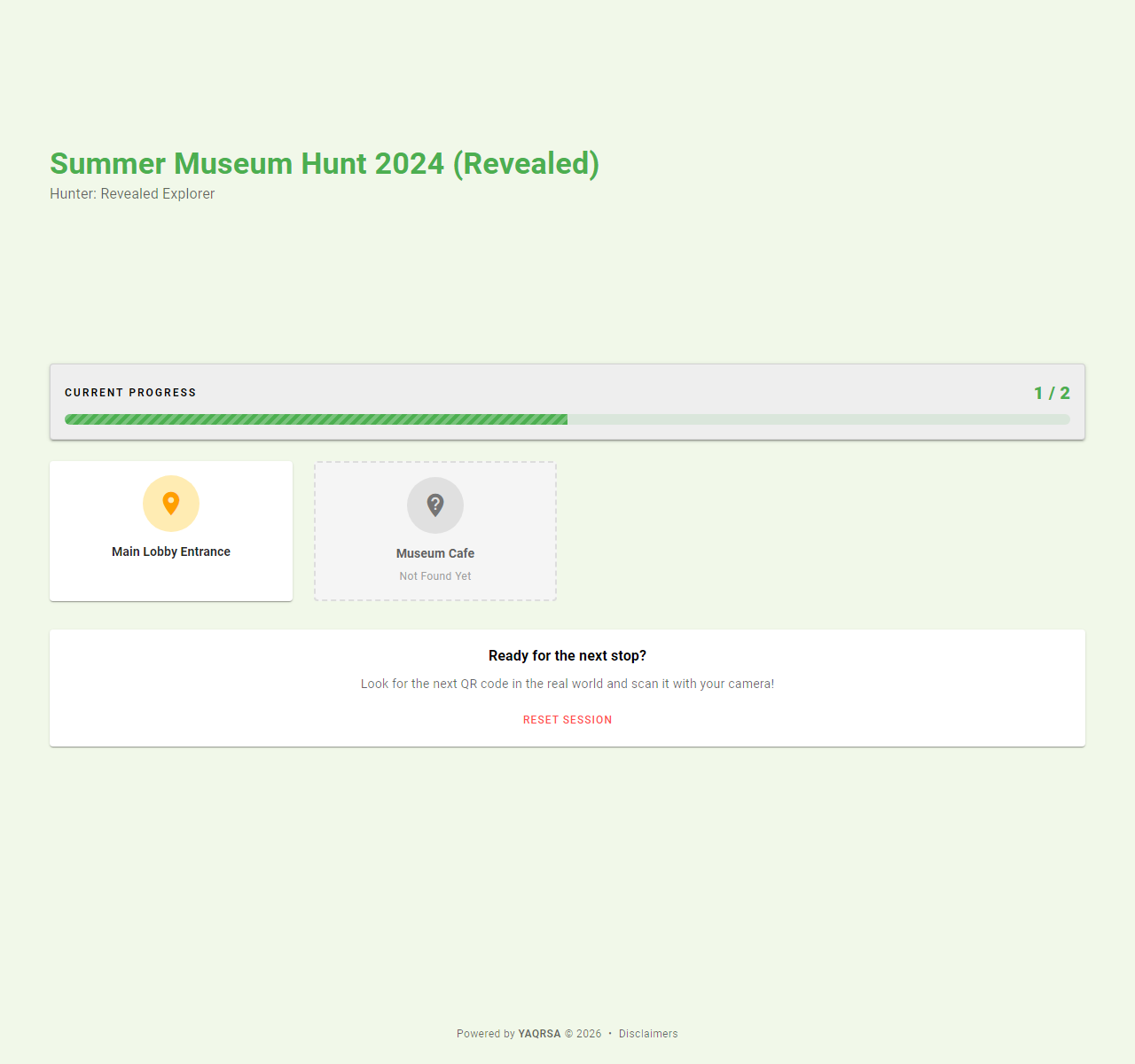
- Show Progress: Toggles the progress bar and score count on the player's screen.
- Progress Display Type: Choose between showing a Percentage (
75%), a Count (3/4- Default), or Detailed view. - Reveal Unfound: If enabled, the player's dashboard will list the names and clues of the stops they haven't discovered yet, turning the hunt into a guided tour. If disabled, unfound stops remain a mystery.
Branding & Aesthetics
- Theme: Change the visual color palette of the player experience. Options include:
- Green (Default)
- Dark Green
- Blue
- Orange
- Pink (New!)
- Brown (New!)
- Purple
- Neon (New!)
- Custom Color: Define your own brand colors using the hex color picker.
- Organization Details: Add your Organization's Name, Website URL, and Logo. These will appear prominently on the player's screen, assuring them they are playing an official event.